Imagine being able to automatically archive 100 web pages to PDF with a single Python command. This isn’t just a time-saver—it’s a productivity game-changer for developers managing large volumes of reports, documentation, or web-based archives.
Automating document archiving in Python is often more frustrating than it should be. Most developers resort to clicking through browser tabs, copying and pasting content, or wrestling with inconsistent APIs that fail under load. The result? Hours wasted on repetitive tasks that could be done in minutes with the right tool.
The Manual Way (And Why It Breaks)
For years, developers have relied on manual methods to archive documents. They open browser windows, click “Print,” and save as PDF—sometimes hundreds of times. Or, they use browser extensions that batch download or print to PDF, but these often break with dynamic content or require specific browser setups. When dealing with large datasets, like 100 webpages, the manual process becomes untenable. Even worse, many tools require a local installation of Chrome or other browsers, consuming system resources and adding complexity to automation workflows.
The Python Approach
Here’s a minimal Python script that demonstrates how to convert HTML to PDF using weasyprint, a library that renders HTML and CSS into PDFs:
from weasyprint import HTML
import os

# List of HTML files or URLs to convert
inputs = ["report1.html", "report2.html", "report3.html"]
output_dir = "pdfs"

# Ensure output directory exists
os.makedirs(output_dir, exist_ok=True)

for input_file in inputs:
    # Read HTML content
    with open(input_file, "r") as f:
        html_content = f.read()

    # Define output path
    filename = os.path.basename(input_file).replace(".html", ".pdf")
    output_path = os.path.join(output_dir, filename)

    # Convert and save as PDF
    HTML(string=html_content).write_pdf(output_path)
    print(f"Saved {output_path}")
This script reads a list of HTML files, converts each one to PDF, and saves it in a designated folder. However, it lacks features like custom page sizes, headers/footers, or support for live webpages. It also requires each file to be local and doesn’t handle errors gracefully when files are missing or HTML is malformed.
What the Full Tool Handles
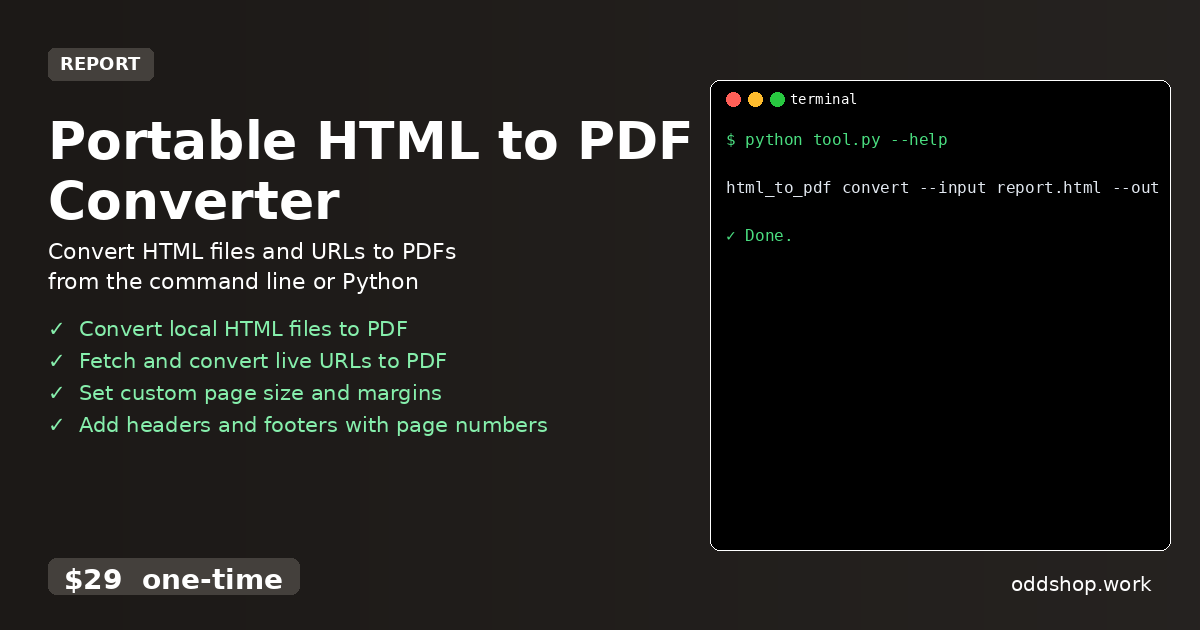
The Portable HTML to PDF Converter makes this process much more reliable:
- Accepts both local HTML files and live URLs
- Sets custom page size and margins with
--formatand--margin - Adds headers and footers, including page numbers
- Handles malformed HTML gracefully with built-in error recovery
- Works as a CLI tool or as a Python module
- Produces clean, consistent output across platforms
Running It
You can run the tool directly from the command line like so:
html_to_pdf convert --input report.html --output report.pdf --format A4
This command takes report.html, converts it to a PDF with A4 formatting, and saves it as report.pdf. You can also pass a URL instead of a file path, and the tool fetches and converts it directly.
Results
With this approach, a developer can generate a full archive of 100 documents in minutes, not hours. The output is consistent, clean, and fully customizable. No more browser windows, no more manual clicks, no more broken links. Document archiving is now truly automated.
Get the Script
If you want to skip building this from scratch, the Portable HTML to PDF Converter is your ready-made solution. It’s a single, dependency-free executable that works anywhere. At just $29 one-time, it’s a small investment for the time and effort saved.
Download Portable HTML to PDF Converter →
$29 one-time. No subscription. Works on Windows, Mac, and Linux.
Built by OddShop — Python automation tools for developers and businesses.