Every morning you spend 30 minutes consolidating data from multiple Excel files? Here’s how to automate that process with Python. If you’re a data analyst or developer who works with spreadsheets daily, you’ve likely faced the repetitive task of merging sales reports, monthly summaries, or operational data from different sheets and files. It’s tedious, error-prone, and eats up valuable time that could be better spent on insights.
The Manual Way (And Why It Breaks)
Without automation, analysts usually resort to manual steps: opening each file, copying data, pasting into a master workbook, handling formatting inconsistencies, and double-checking for errors. This process not only takes hours but also introduces human mistakes, especially when dealing with large or irregular datasets. Many professionals end up hitting Excel’s API limits or running into memory issues when trying to combine dozens of files at once. The tedium grows worse with each new dataset, and eventually, it becomes a bottleneck in reporting workflows.
The Python Approach
Here’s a basic Python script that shows how you can merge Excel files programmatically using pandas and openpyxl. It merges two .xlsx files into one DataFrame.
import pandas as pd
from pathlib import Path

def merge_excel_files(file_list, output_file):
    dataframes = []
    for file in file_list:
        # Read all sheets from the Excel file
        sheets = pd.read_excel(file, sheet_name=None)
        for sheet_name, df in sheets.items():
            df['source_sheet'] = sheet_name
            df['source_file'] = Path(file).stem
            dataframes.append(df)

    # Combine all dataframes
    merged_df = pd.concat(dataframes, ignore_index=True)
    merged_df.to_excel(output_file, index=False)
    print(f"Merged data saved to {output_file}")

# Usage example
files = ['sales_q1.xlsx', 'sales_q2.xlsx']
merge_excel_files(files, 'annual_report.xlsx')
This script reads each Excel file, extracts all sheets, and appends metadata like the source file and sheet name to help track where data came from. It works well for small datasets but lacks advanced features like handling different file formats, managing errors gracefully, or providing a command-line interface for batch processing.
What the Full Tool Handles
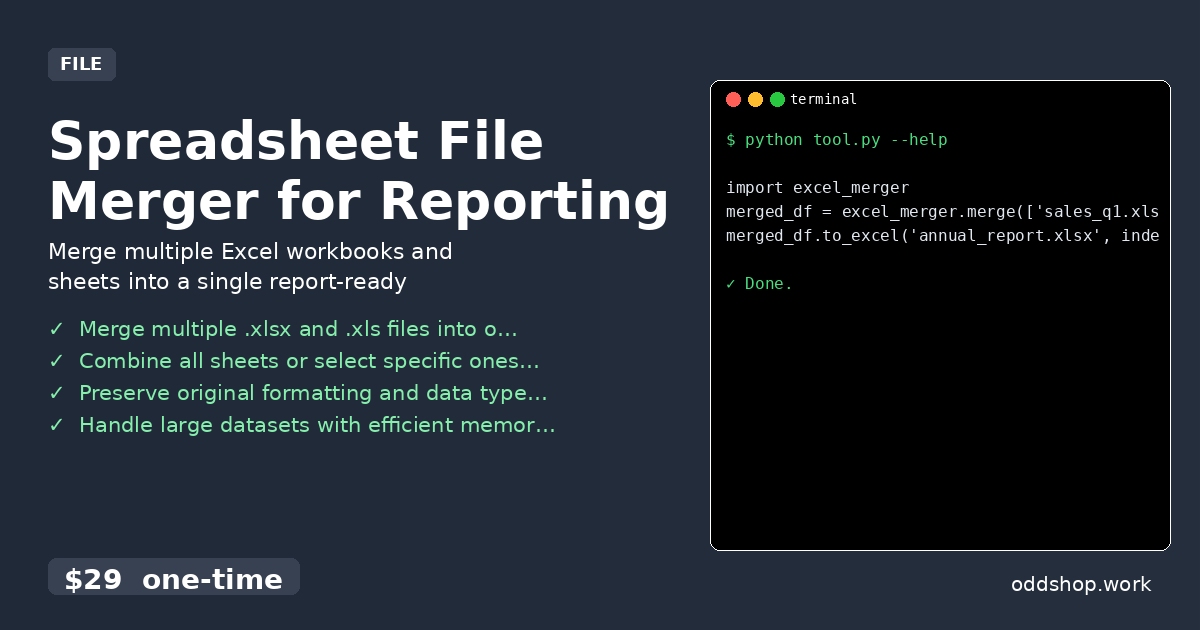
The Spreadsheet File Merger for Reporting addresses the shortcomings of DIY scripts by handling:
- Merging
.xlsxand.xlsfiles seamlessly - Selective sheet merging (combine all or specific ones)
- Preserving original formatting and preserving data types
- Efficient memory usage for large datasets
- Batch processing via command-line interface
- Detailed error logging and warnings for malformed files
Running It
Using the tool is simple:
import excel_merger

merged_df = excel_merger.merge(['sales_q1.xlsx', 'sales_q2.xlsx'])
merged_df.to_excel('annual_report.xlsx', index=False)
You can pass a list of file paths to the merge() function. The function accepts optional parameters such as sheets='all' or sheets=['Sheet1', 'Sheet2'], and supports merging across multiple file types. Output is a single merged DataFrame that you can export to Excel or another format.
Results
With this tool, you save hours each week that would otherwise be spent manually merging data. It produces clean, consistent reports without human error. You get one consolidated file that combines all your source data, preserving structure and enabling faster reporting cycles.
Get the Script
If you want to skip building the logic yourself, the Spreadsheet File Merger for Reporting is a ready-to-use solution built for analysts and developers. At $29 one-time, it’s a small investment for the time and effort it saves.
Download Spreadsheet File Merger for Reporting →
$29 one-time. No subscription. Works on Windows, Mac, and Linux.
Built by OddShop — Python automation tools for developers and businesses.