Manually calculating retention cohorts in Excel takes hours and leaves you drowning in formulas that break every time your data changes. When your user base grows beyond a few hundred accounts, the manual approach becomes unsustainable, and expensive BI tools aren’t always an option for smaller teams.
The Manual Way (And Why It Breaks)
Most developers start by exporting user signup data and activity logs into separate CSV files, then importing them into Excel. They create pivot tables to group users by signup week, manually calculate retention percentages for each cohort period, and apply conditional formatting to visualize trends. Every time new data arrives, they repeat the entire process. One typo in a formula can corrupt an entire cohort calculation, and scaling beyond monthly retention means copying complex formulas across dozens of columns. The spreadsheet becomes a maintenance nightmare when you need to adjust date ranges or handle edge cases like users who signed up but never activated their accounts.
The Python Approach
Here’s the core logic for calculating retention cohorts programmatically:
import pandas as pd
from datetime import datetime

def calculate_cohort_retention(signups_df, activity_df):
    # Convert dates and create cohort periods
    signups_df['signup_date'] = pd.to_datetime(signups_df['signup_date'])
    activity_df['activity_date'] = pd.to_datetime(activity_df['activity_date'])

    # Assign users to signup cohorts (weekly periods)
    signups_df['cohort'] = signups_df['signup_date'].dt.to_period('W')

    # Merge activity with signup information
    merged = activity_df.merge(signups_df[['user_id', 'cohort']], on='user_id')

    # Calculate weeks since signup for each activity
    merged['week_number'] = ((merged['activity_date'] -
                             merged['signup_date'].dt.to_period('W').dt.start_time) / 7).dt.days

    # Count unique active users per cohort per week
    retention = merged.groupby(['cohort', 'week_number'])['user_id'].nunique()

    # Create pivot table showing retention percentages
    cohort_matrix = retention.unstack(fill_value=0)
    return cohort_matrix.div(cohort_matrix.iloc[:, 0], axis=0) * 100
This code calculates weekly retention percentages by grouping users into signup cohorts and tracking their activity over time. However, it lacks proper error handling for missing data, assumes clean CSV formats, and doesn’t generate formatted output suitable for sharing with stakeholders.
What the Full Tool Handles
The complete solution includes several production-ready features:
- Automatic CSV format detection and data validation
- Configurable retention periods (daily, weekly, or monthly)
- Built-in error handling for missing or malformed data
- Command-line interface for easy automation
- Excel output with conditional formatting and summary metrics
Running It
Use the tool from your terminal with simple command-line arguments:
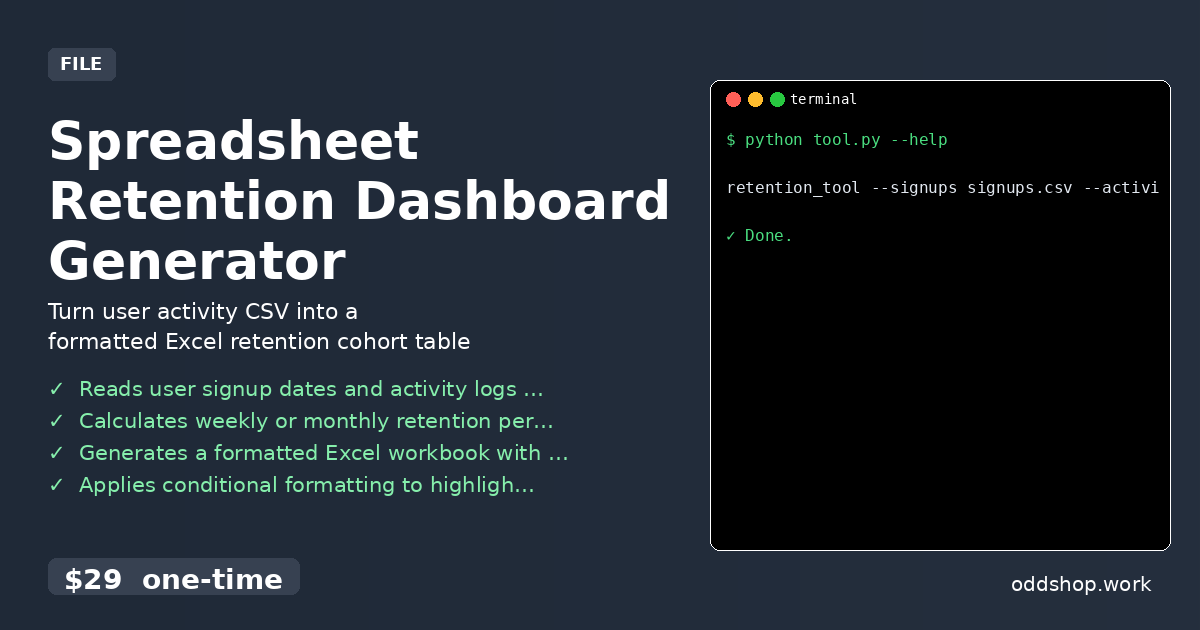
retention_tool --signups signups.csv --activity activity.csv --output retention_report.xlsx --period monthly
The --signups flag specifies your user registration file, --activity points to user engagement events, --output sets the Excel filename, and --period chooses between daily, weekly, or monthly retention calculations. The resulting workbook contains both the cohort matrix and summary statistics about your retention performance.
Results
The tool generates a complete Excel dashboard with color-coded retention matrices and summary metrics in under 30 seconds. You’ll receive both the raw percentage data and visual formatting that highlights retention trends across different user cohorts.
Get the Script
Skip building the error handling, output formatting, and CLI interface yourself — the Spreadsheet Retention Dashboard Generator handles all the complexity in a polished package.
Download Spreadsheet Retention Dashboard Generator →
$29 one-time. No subscription. Works on Windows, Mac, and Linux.
Built by OddShop — Python automation tools for developers and businesses.