When your team has spreadsheets scattered across multiple sheets and workbooks, this Python solution saves the day. Imagine trying to consolidate quarterly sales data from ten separate Excel files — each with their own formatting, headers, and sheet names. Copy-pasting manually isn’t just time-consuming; it’s error-prone and inefficient. That’s where a well-built combine excel sheets python script comes in handy.
The Manual Way (And Why It Breaks)
Most people facing this problem fall back on manual methods. They open each Excel file, copy data from one sheet, paste it into a new workbook, and repeat. It’s tedious. If there are 20+ sheets, or if the files are large, it quickly becomes a nightmare. Even worse, when dealing with dozens of files, Excel’s API limits or UI freezes can disrupt the workflow.
Developers often hit roadblocks trying to write their own scripts using pandas, openpyxl, or xlrd. These tools work great for small tasks, but scaling them for hundreds of files or handling inconsistent data structures can lead to bugs, memory issues, or lost formatting. And that’s before considering automation for batch processing in a production environment.
The Python Approach
Here’s a simplified version of a combine excel sheets python script that demonstrates core functionality:
import pandas as pd
from glob import glob

def merge_excel_files(file_paths, output_file='merged_output.xlsx'):
    merged_data = []

    for file in file_paths:
        # Read all sheets from each file
        sheets = pd.read_excel(file, sheet_name=None)
        for sheet_name, df in sheets.items():
            df['source_sheet'] = sheet_name
            df['source_file'] = file
            merged_data.append(df)

    final_df = pd.concat(merged_data, ignore_index=True)
    final_df.to_excel(output_file, index=False)
    return final_df
This code reads multiple Excel files, combines all sheets from each file into a single DataFrame, and saves the result to a new Excel file. It works well for small datasets but has limitations: it doesn’t handle large files efficiently, lacks error handling for corrupted sheets, and assumes consistent data structures. For anything beyond a few files, a robust tool is required.
What the Full Tool Handles
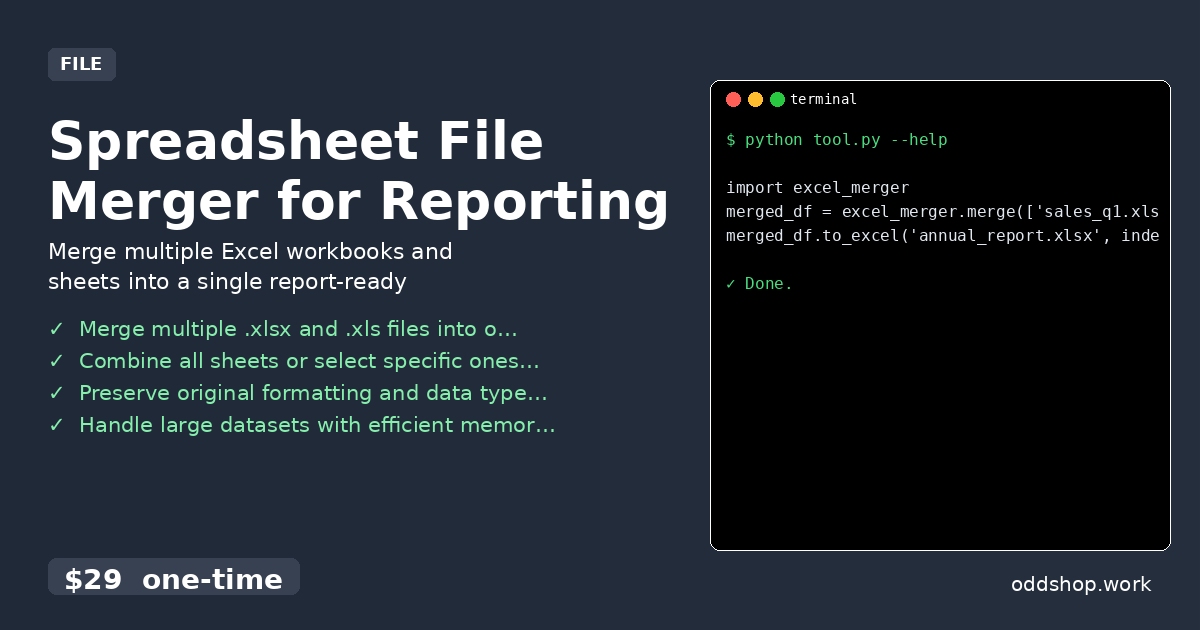
The full Spreadsheet File Merger for Reporting improves upon basic scripts in several key ways:
- Handles both
.xlsxand.xlsformats - Merges all sheets or selects specific ones by name
- Preserves original data types and formatting
- Processes large datasets without memory overload
- Includes a command-line interface for automation
- Offers customizable output options (e.g., separate sheets, combined sheets)
- Includes built-in error reporting for invalid files or corrupted data
Running It
Using the tool is simple:
import excel_merger

merged_df = excel_merger.merge(['sales_q1.xlsx', 'sales_q2.xlsx'])
merged_df.to_excel('annual_report.xlsx', index=False)
You can also specify which sheets to merge, or process files in bulk using the CLI. The tool supports passing a list of paths and merging them into one organized workbook, maintaining clean metadata and structure.
Results
After running the script, you get a single, clean Excel file containing all the data from your input workbooks. Time saved is measurable — no more hours spent on manual copy-paste, no more lost data from misnamed sheets. You end up with a reliable, automated solution that scales with your data.
Get the Script
If you want to skip the build and get a polished, production-ready combine excel sheets python script, check out the Spreadsheet File Merger for Reporting. It’s designed for analysts, developers, and business users who need to merge Excel files quickly and reliably.
Download Spreadsheet File Merger for Reporting →
$29 one-time. No subscription. Works on Windows, Mac, and Linux.
Built by OddShop — Python automation tools for developers and businesses.