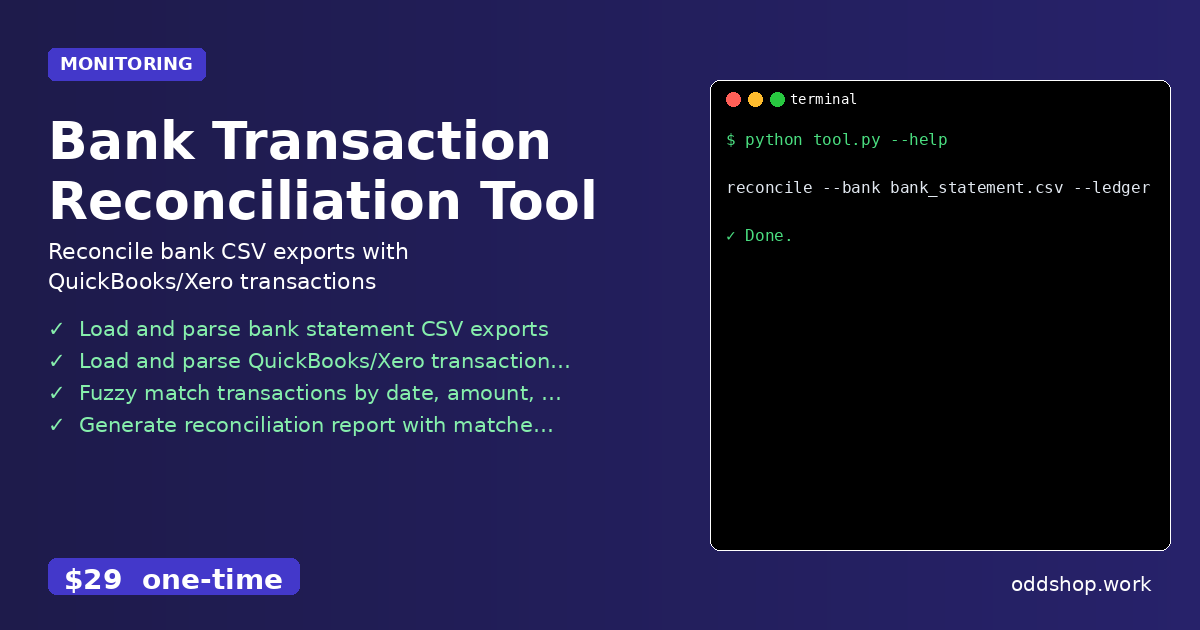
Generating detailed reconciliation reports from CSV files shouldn’t require hours of manual work in Excel. Financial teams often spend days matching transactions, hunting for mismatches, and creating reports by hand. This process is error-prone, tedious, and inefficient — especially when dealing with large datasets.
The Manual Way (And Why It Breaks)
Most developers and finance teams currently handle reconciliation by copying and pasting data into Excel, then manually searching for matches across two spreadsheets. This method is time-consuming and prone to human error, especially when transaction descriptions differ slightly or when dealing with thousands of rows. In some cases, teams hit API limits by repeatedly pulling data from accounting tools like QuickBooks or Xero, which forces them to export data manually and spend even more time cleaning it.
The Python Approach
Here’s a simplified Python script that shows how you might begin to automate this task using basic CSV tools. This example focuses on comparing two datasets, matching on date and amount, and flagging mismatches.
import csv
from datetime import datetime

def parse_csv(file_path):
    data = []
    with open(file_path, 'r') as f:
        reader = csv.DictReader(f)
        for row in reader:
            data.append({
                'date': row['date'],
                'amount': float(row['amount']),
                'description': row['description']
            })
    return data

def reconcile(bank_data, ledger_data):
    unmatched = []
    matched = []

    for bank_tx in bank_data:
        for ledger_tx in ledger_data:
            if (bank_tx['date'] == ledger_tx['date'] and
                abs(bank_tx['amount'] - ledger_tx['amount']) < 0.01):
                matched.append((bank_tx, ledger_tx))
                break
        else:
            unmatched.append(bank_tx)

    return matched, unmatched

bank = parse_csv('bank_statement.csv')
ledger = parse_csv('quickbooks_export.csv')

matched, unmatched = reconcile(bank, ledger)

print(f"Matched: {len(matched)}, Unmatched: {len(unmatched)}")
This code loads two CSV files, parses transaction data, and tries to match transactions by date and amount. It’s a starting point, but it won’t handle fuzzy matching, different date formats, or edge cases like duplicate or missing values. For production use, you’d need to add more logic to handle real-world inconsistencies.
What the Full Tool Handles
This script is useful for learning but falls short when applied to real-world reconciliation. The full Bank Transaction Reconciliation Tool handles:
- Multiple date formats and flexible matching logic
- Fuzzy matching for descriptions that aren’t exact matches
- Error handling for missing or malformed data
- Support for various accounting tools (QuickBooks, Xero, etc.)
- A clean CLI interface to run the tool with a single command
- Output in CSV format for easy review
Running It
You can run the tool using a command like:
reconcile --bank bank_statement.csv --ledger quickbooks_export.csv --output report.csv
The --bank flag specifies the CSV from your bank, --ledger points to your QuickBooks or Xero export, and --output sets where the reconciliation report will be saved.
Results
Once run, the tool generates a clean CSV file with matched and unmatched transactions. It saves hours of manual effort and reduces the risk of human error. You’ll get a clear overview of what reconciles and what needs further review.
Get the Script
If you want to skip the build and get a polished tool that handles all these edge cases, download the Bank Transaction Reconciliation Tool for $29. No subscription. Works on Windows, Mac, and Linux.
Built by OddShop — Python automation tools for developers and businesses.