Photo to spreadsheet conversion is a time-consuming task often done manually, especially when field workers or researchers scan paper forms and then type data into Excel. The process is error-prone, repetitive, and slows down workflows. With tools like OCR Python and image to text Python, developers can automate parts of this process—but doing it right requires handling form layouts, checkboxes, and structured output.
The Manual Way (And Why It Breaks)
Manually entering data from paper forms is tedious and inefficient. Each form must be photographed, then the text is carefully transcribed by hand into an Excel sheet. Researchers who rely on field data often spend hours doing this, and even small mistakes can cascade into larger issues downstream. For someone doing form recognition Python, it’s clear that the current workflow isn’t scalable. The typical route involves not just copying text, but also identifying checkboxes, radio buttons, and labeled fields—tasks that are especially hard when dealing with multiple images.
The Python Approach
This Python script uses OCR and basic computer vision to extract structured form data from images and convert it into a spreadsheet. It’s a simplified version of what a full photo to spreadsheet tool might do, ideal for developers looking to build or understand the core logic.
import cv2
import pytesseract
import pandas as pd
from pathlib import Path

# Load image
image_path = "survey_photo.jpg"
image = cv2.imread(image_path)

# Preprocess image for better OCR
gray = cv2.cvtColor(image, cv2.COLOR_BGR2GRAY)
threshold = cv2.threshold(gray, 0, 255, cv2.THRESH_BINARY + cv2.THRESH_OTSU)[1]

# Extract text using Tesseract OCR
text_data = pytesseract.image_to_string(threshold)

# Parse text into structured fields
fields = {}
for line in text_data.splitlines():
    if ':' in line:
        key, value = line.split(':', 1)
        fields[key.strip()] = value.strip()

# Convert to Excel
output_path = "output_data.xlsx"
df = pd.DataFrame([fields])
df.to_excel(output_path, index=False)

print(f"Data saved to {output_path}")
This code uses OpenCV to preprocess a form image and Tesseract for OCR, extracting key-value pairs from labeled fields. While it works for simple layouts, it can’t detect checkboxes or handle complex form structures like radio buttons or table-based input. It’s a good foundation, but real-world form data usually requires more sophisticated image processing and structure mapping.
What the Full Tool Handles
- Accurately extract text using Tesseract OCR in various fonts and orientations.
- Detect checkboxes and radio buttons using image processing techniques.
- Map extracted data to consistent Excel columns for easy reporting.
- Process multiple form photos and merge them into a single spreadsheet.
- Support for common form layouts including labeled fields and tabular data.
- Photo to spreadsheet conversion without manual intervention.
Running It
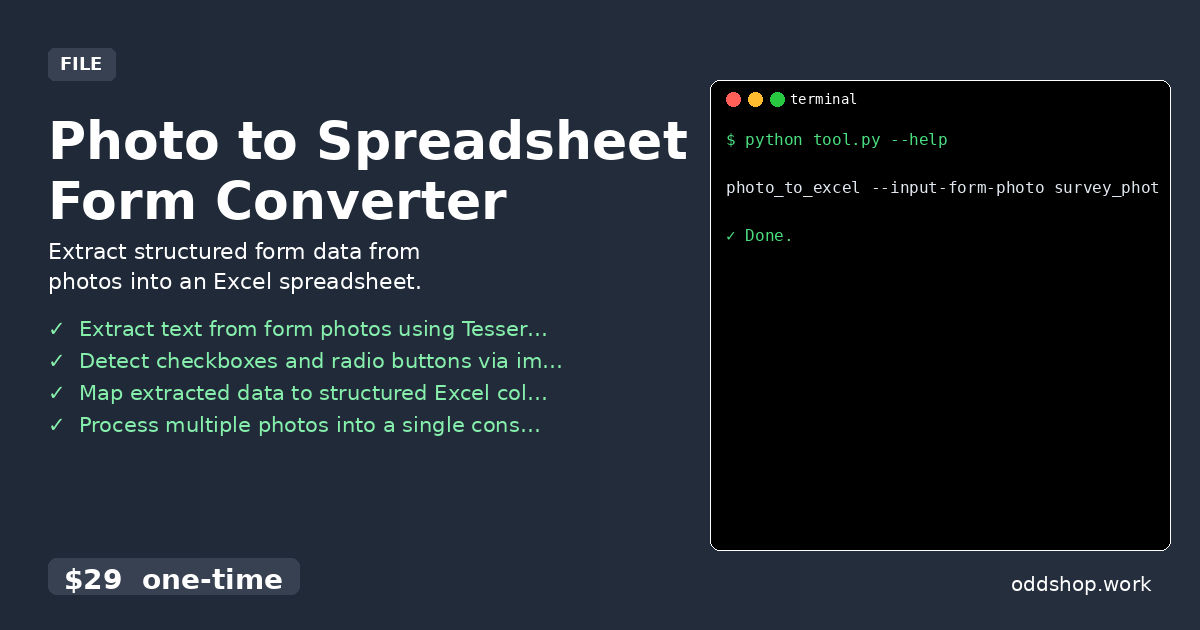
To use the full tool, run this command in your terminal:
photo_to_excel --input-form-photo survey_photo.jpg --output-file data.xlsx
The tool accepts a single image or a directory of images, and outputs a consolidated Excel file. Flags like --input-form-photo and --output-file help define input and destination. Each form is processed individually and merged into one file for easy analysis.
Get the Script
If you want to skip building your own solution, the full photo to spreadsheet tool is ready for use. The tool handles all the complexity for you—OCR, checkbox detection, and structured output—so you can focus on your work.
Download Photo to Spreadsheet Form Converter →
$29 one-time. No subscription. Works on Windows, Mac, and Linux.
Built by OddShop — Python automation tools for developers and businesses.