Python excel automation shouldn’t be a manual process. When analysts or developers need to combine data from multiple Excel files for reporting, the task often becomes a time-consuming mess of copy-paste, formatting, and error-prone file handling. This is where the pain point lies — especially when working with quarterly sales data or multi-source financial reports. A tool that supports excel spreadsheet merging and python data consolidation can save hours of back-and-forth.
The Manual Way (And Why It Breaks)
Without automation, analysts often start by downloading each Excel file manually, then open them one by one to copy and paste data into a master workbook. The process is tedious and prone to mistakes. You might spend 30 minutes just to ensure the formatting stays consistent across sheets. If you’re using excel file manipulation tools like Excel’s built-in features, you’ll hit memory limits when dealing with larger datasets. You’re also at risk of losing data types, such as dates or percentages, due to improper copying. Each time there’s a new dataset, the same workflow must be repeated — making automated spreadsheet processing a necessity rather than a luxury.
The Python Approach
This is where python excel automation comes in. The script below shows how to merge two Excel files using pandas, a common data processing library in Python. It loads each file, extracts all sheets, and concatenates them into one unified dataset that can be saved as a new Excel file. While this approach works for small datasets, it doesn’t scale well with larger workbooks or when formatting needs to be preserved.
import pandas as pd
from pathlib import Path

# List of Excel files to merge
excel_files = ['sales_q1.xlsx', 'sales_q2.xlsx']

# Store all dataframes in a list
merged_dataframes = []

# Loop through each file
for file in excel_files:
    # Read all sheets from the current Excel file
    sheets = pd.read_excel(file, sheet_name=None)
    for sheet_name, df in sheets.items():
        # Add a column to track the source file and sheet
        df['source_file'] = Path(file).stem
        df['source_sheet'] = sheet_name
        merged_dataframes.append(df)

# Concatenate all DataFrames
final_df = pd.concat(merged_dataframes, ignore_index=True)

# Save to a new Excel workbook
final_df.to_excel('annual_report.xlsx', index=False)
This simple Python snippet merges data from multiple sheets and files, but it lacks support for preserving formatting or handling large files efficiently. It also doesn’t include error handling or options to merge only specific sheets.
What the Full Tool Handles
- Merge multiple
.xlsxand.xlsfiles into one workbook - Combine all sheets or select specific ones by name
- Preserve original formatting and data types
- Handle large datasets with efficient memory usage
- Command-line interface for batch processing
- Python excel automation that doesn’t compromise performance
Running It
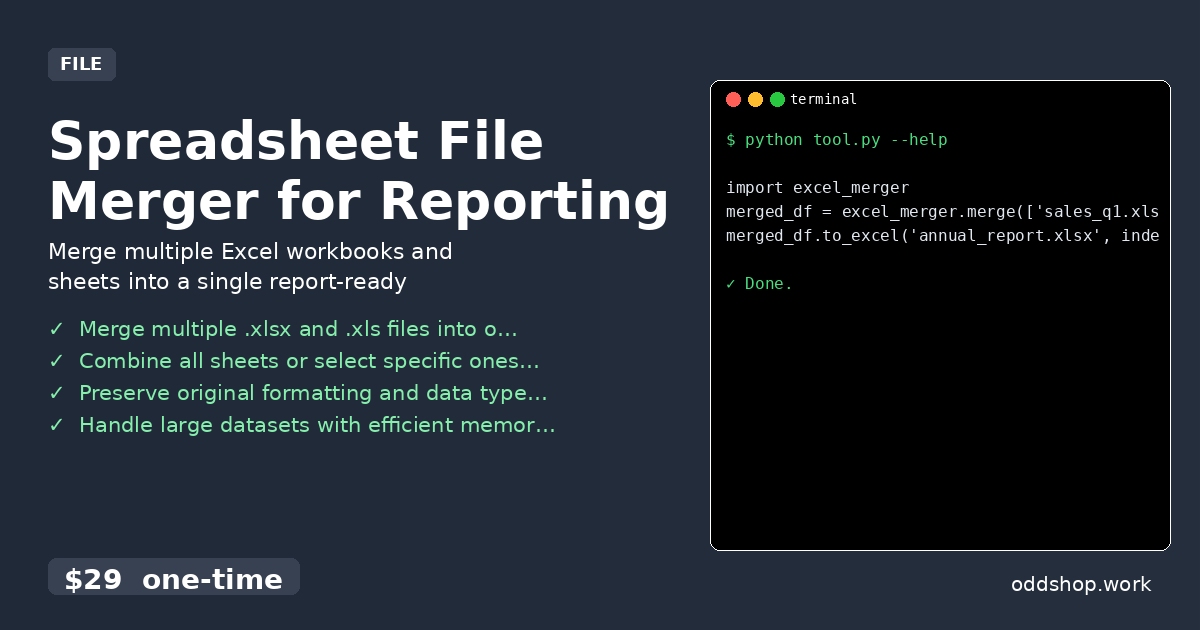
import excel_merger
merged_df = excel_merger.merge(['sales_q1.xlsx', 'sales_q2.xlsx'])
merged_df.to_excel('annual_report.xlsx', index=False)
The tool supports passing a list of file paths and will merge them into a single DataFrame, with optional flags to specify which sheets to merge or how to handle duplicate headers. The output is a clean Excel file with all data consolidated, ready for reporting.
Get the Script
Skip the build — this tool offers all the excel spreadsheet merging features you need, polished and tested.
Download Spreadsheet File Merger for Reporting →
$29 one-time. No subscription. Works on Windows, Mac, and Linux.
Built by OddShop — Python automation tools for developers and businesses.