Excel sheet python users often waste hours on repetitive data extraction tasks. The manual process of copying, pasting, and cleaning data from spreadsheets is not only time-consuming but also error-prone. If you’ve ever needed to pull specific columns from a massive Excel file, only to realize that Excel’s built-in tools are too limited, you know exactly what we’re talking about.
The Manual Way (And Why It Breaks)
Manually working with large Excel files is a tedious ordeal. You start by opening the file, then navigate through multiple sheets to locate the data you need. Then comes the painful part — copy-pasting rows into a new spreadsheet, adjusting column widths, and dealing with misaligned headers. You might end up spending hours just cleaning up formatting. When you’re doing this regularly, it becomes a bottleneck in your excel data extraction workflow. Even worse, if you’re using python spreadsheet automation, the manual steps quickly become a blocker instead of a helper. It’s frustrating when your goal is to analyze data, not hunt for the right cells.
The Python Approach
If you’re comfortable with Python, you can automate the extraction with a script that reads Excel files and outputs filtered data to CSV. Here’s a practical example using pandas:
The code for this section is in the full article: View code example →
This code snippet handles basic column filtering and row filtering, but it doesn’t scale well. It assumes you know the column names and exact conditions, and it doesn’t support multiple sheets or complex filters. For data filtering python tasks that are more flexible or repeated, a better tool is needed.
What the Full Tool Handles
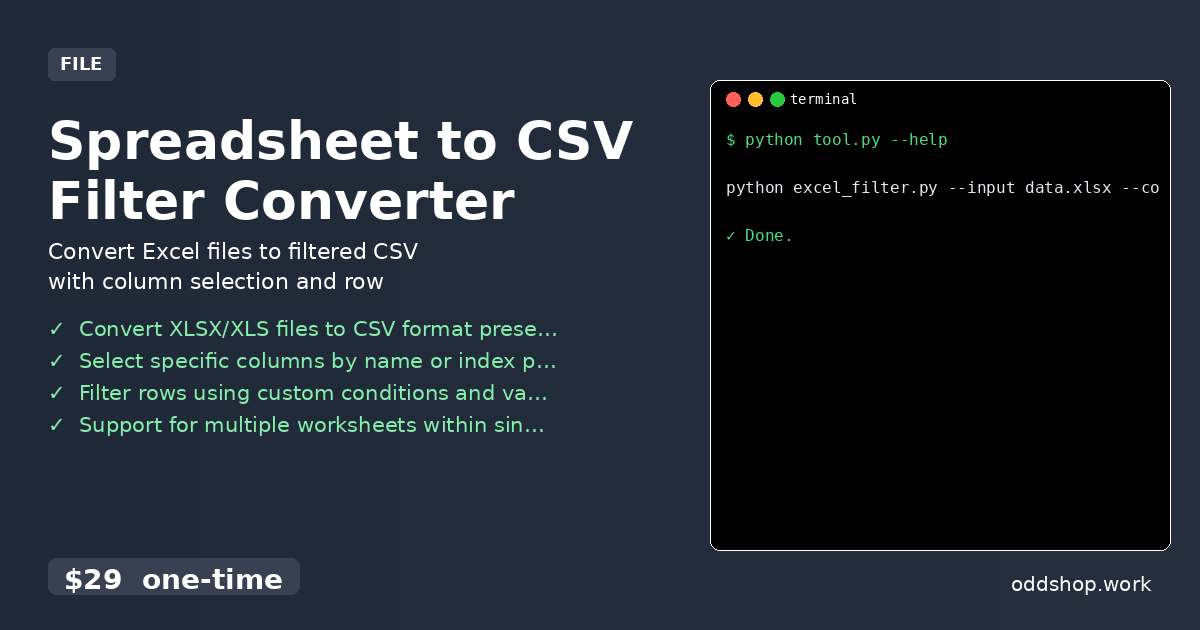
- Convert XLSX/XLS files to CSV format preserving data types
- Select specific columns by name or index position
- Filter rows using custom conditions and value matching
- Support for multiple worksheets within single Excel files
- Output to console or save filtered results to new CSV file
- Excel sheet python users will appreciate how it handles edge cases that manual steps don’t.
Running It
The full tool can be executed from the command line with a simple, intuitive interface:
The code for this section is in the full article: View code example →
Here, --input specifies the Excel file to process, --columns lets you define which columns to keep, --filter applies a condition to rows, and --output saves the final CSV. The output will be a clean, filtered CSV file that matches your exact requirements.
Get the Script
This tool is the polished, real-world version of what we just walked through. Skip the build — it’s ready to go.
Download Spreadsheet to CSV Filter Converter →
$29 one-time. No subscription. Works on Windows, Mac, and Linux.
Built by OddShop — Python automation tools for developers and businesses.